
Thumbnail
Thumbnail

Tutorials

.

.

Not sure your AI placement is correct? Here's how to use MODI Factory's design comments

Should you just trust the AI's placement? Here's how to read MODI Factory's design rationale comments and evaluate every decision yourself.

You've received your first placement result from MODI Factory. The board looks reasonable. But a question surfaces:

"How do I know this is actually correct?"

That's exactly the right instinct. Any output from any tool — AI or otherwise — deserves to be reviewed and evaluated. MODI Factory is no exception.

To support that review process, MODI Factory provides AI design rationale comments. Alongside every placement result, the AI explains the logic behind its decisions at two levels of detail — so you can evaluate the output as an engineer, not just accept it at face value.

In this guide, we'll cover what AI comments are, how to read them efficiently, and what to do when a result doesn't look right.


Step 1. What are AI design rationale comments?

MODI Factory's AI runs placement based on physical laws and design rules. Rather than simply delivering a finished output, it generates comments explaining the reasoning behind each placement decision.

These comments are provided at two levels.

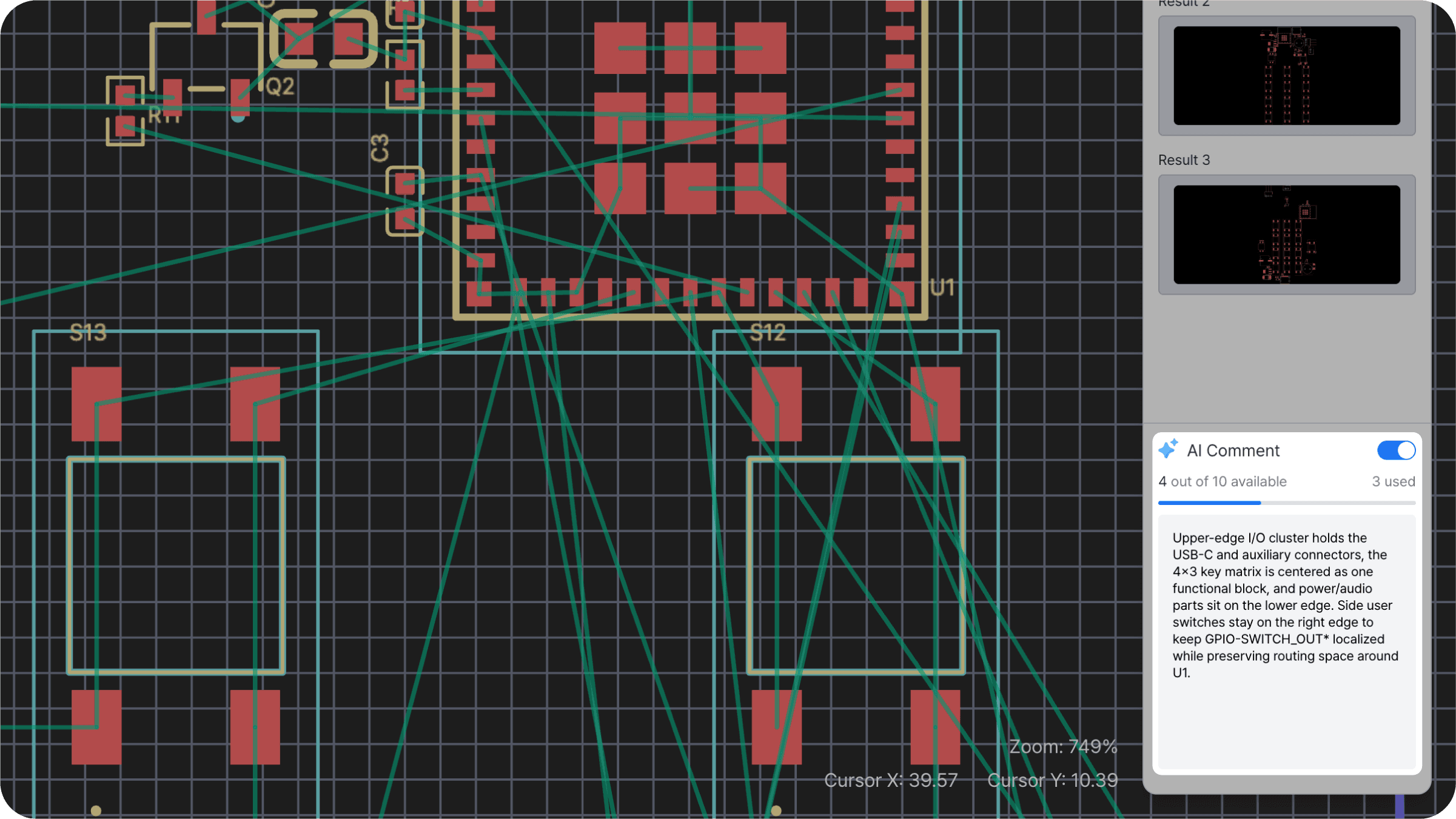
① Board-level comment — displayed by default in the right panel of the results screen. It describes the AI's overall placement strategy for the entire board: how it divided the board into zones, how it grouped components, and why. This is the view you'll see in the live service.


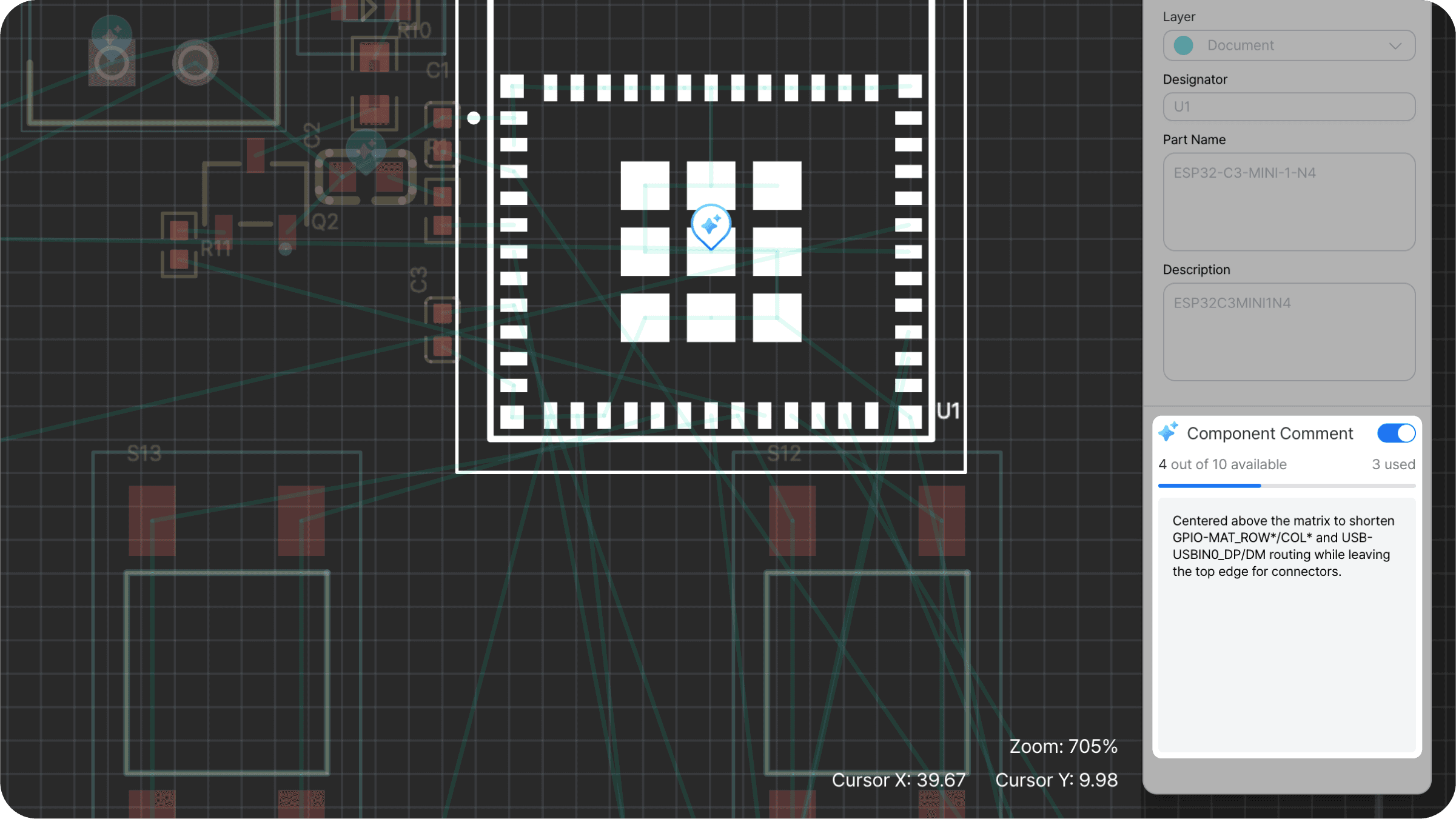
② Component-level comment — click any individual component on the results screen to see a comment specific to that part, explaining why it was placed in that position. For example, clicking the ESP32 module might surface a comment like: "The main ESP32 module is centered between the mirroring controls for balanced routing and the programming/power section." Whenever a particular component's placement warrants closer inspection, click it to see the AI's reasoning directly.


Step 2. Multiple results? Comparing your options

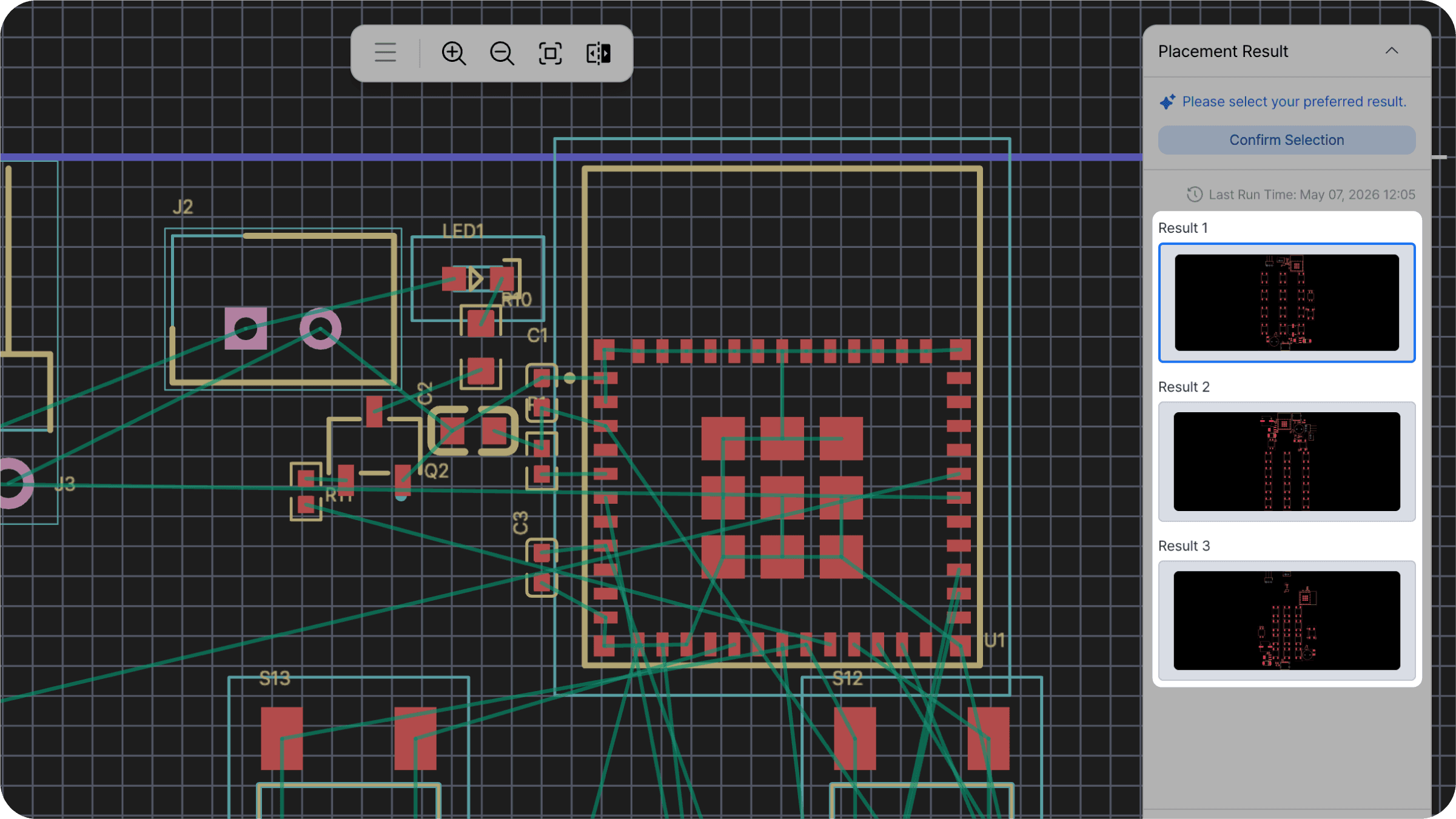
MODI Factory doesn't return a single placement result — it provides two to three distinct layout options for you to choose from.

Each result comes with its own board-level comment. Comparing them side by side shows how each layout prioritizes differently. Result 1 might center the MCU to optimize routing efficiency; Result 2 might prioritize front-panel layout and user accessibility. Read through the comments, select the result that best fits your project requirements, and click [Confirm Selection].


Step 3. How to read AI comments effectively

When you first open the comments, the volume of information can feel overwhelming. Follow this three-step approach to extract the key insights quickly.

① Get the big picture from the board-level comment Read the overall comment in the right panel first. It lays out the AI's full logic — how it divided the board into zones, which functional groups it placed where, and why. Check whether this big-picture strategy aligns with your design intent before diving into the details.

② Click individual components that warrant closer inspection If any particular component's placement seems questionable after reading the board-level comment, click it directly. The component-level comment will explain exactly why it was placed there.

③ Cross-reference the comments with the actual layout As you read, keep the layout visible and verify what you're reading against what you see on screen. If the comment states that the ESP32 was positioned as the central routing hub, confirm that the board reflects it. This cross-referencing step substantially improves your comprehension of the result.


Step 4. What to do when the result isn't what you wanted

If the placement logic doesn't align with your project after reviewing the AI comments, work through the following steps.

① Check the other result options Read the comments for the other results first. Each one reflects a different placement strategy, so Result 2 or 3 may align more closely with your requirements.

② Download as a project file and edit manually If none of the results fully satisfies you, select the closest one, download it as a project file, and make targeted edits in KiCad or another external EDA tool. Using the AI output as a starting point is significantly more efficient than restarting placement from scratch.

③ Modify the source file and run again If the issue lies in the source file itself, edit it in KiCad or EasyEDA and upload the modified file to MODI Factory as a new project.


Step 5. Reading AI comments is a skill that builds over time

The comments may feel unfamiliar at first. But make it a habit, and two things will change.

First, your review speed will improve. Once you're comfortable scanning the board-level comment for the big picture and clicking individual components only when something warrants it, review time drops noticeably.

Second, the design logic in the comments starts to become real PCB knowledge. Principles like "place the MCU as the central routing hub," "cluster the power section near the input connector," and "distribute UI components toward the board periphery" begin to feel instinctive — not just AI output.

MODI Factory handles the repetitive work. But understanding and evaluating the AI's decisions remains the engineer's responsibility. Design rationale comments exist to support exactly that process.


Wrapping up

Blindly trusting the AI output and reflexively doubting it are both the wrong approach. The right way to use MODI Factory is to verify the big picture with the board-level comment, then dig into the details by clicking individual components. That's what it means to use the tool well.

Next up: Tutorial ④ covers 4 practical tips for getting faster and more accurate results from MODI Factory. If you've worked through the basics, this one is worth reading.


👉 Try MODI Factory for free

Socials
Legal

COPYRIGHT 2024 LUXROBO ALL RIGHT RESERVED

Socials
Legal

COPYRIGHT 2024 LUXROBO ALL RIGHT RESERVED

Socials
Legal

COPYRIGHT 2024 LUXROBO ALL RIGHT RESERVED

Socials
Legal

COPYRIGHT 2024 LUXROBO ALL RIGHT RESERVED